Live audio
The recording head keeps collecting incoming sound while you explore earlier material. BUFFER limits the available history. FREEZE stops new recording so the captured material can be worked repeatedly.
Leviathan for VCV Rack 2 · Open Source
Grab the record. Move through time.
A stereo scratch deck for live audio and loaded samples, with platter gestures, slip return, reverse, freeze, and disk-backed LongPlay playback.
A turntable for recorded time
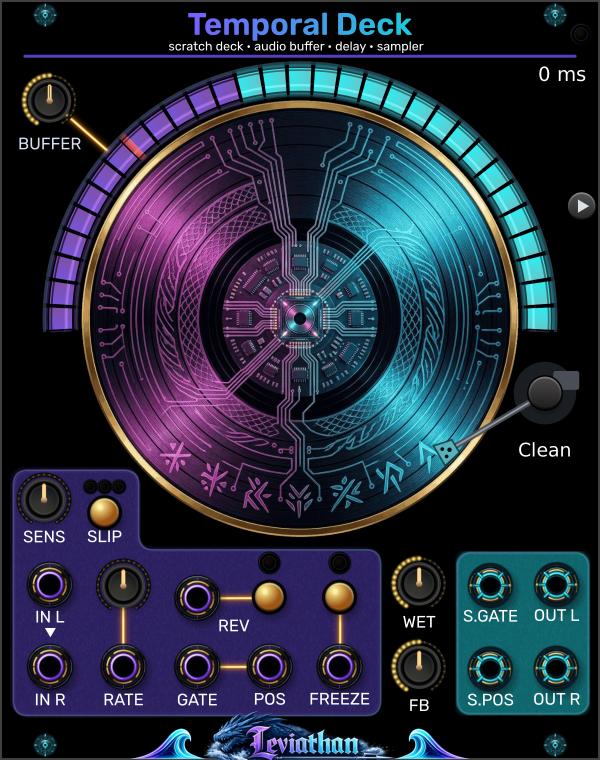
Temporal Deck is a 20 HP stereo scratch deck, live buffer, delay, and sample player. Incoming audio enters a circular recording buffer; a separate playback head can move through that history. Moving the platter changes playback position and speed together, producing turntable-style pitch bends and scratches. Normal platter speed is based on 33⅓ RPM.
The recording head keeps collecting incoming sound while you explore earlier material. BUFFER limits the available history. FREEZE stops new recording so the captured material can be worked repeatedly.
Loading a file switches to sample playback. The platter works through the file, BUFFER sets the active playback window, and the arc provides seeking. LongPlay uses disk-backed streaming for loaded files.
First patch
Panel tour
Click a numbered marker to reach its description. The reference begins beside the panel and continues below it, including all four outputs.
Top left
Limits accessible live history within the selected buffer range. In sample mode it sets the active window end as a fraction of the file; it does not select a different recording allocation.
Center and upper rim
Left-drag the record to scratch; scroll over it for wheel scratching. Middle-click requests a quick slip return. Click or drag the upper arc to seek through live history or the loaded sample, clamped to the active BUFFER window.
Lower left, above IN L
Adjusts scratch sensitivity. Tune this to your mouse or trackpad before performing fine movements.
Beside SENS
Cycles through Slow → Normal → Instant → Off. The three small indicators show the enabled return setting. Slip brings playback back toward its running reference after a scratch.
Above the RATE input
Sets base playback speed from 0.5× to 2×, with 1× at the center. A cable in RATE replaces this knob setting.
Gold button beside REV input
Toggles reverse playback when external gated control is not taking ownership. Enabling reverse clears a button-latched freeze; in sample mode it also starts playback.
Gold button above FREEZE input
Latches freeze. Enabling it clears reverse and slip. Live recording stops; in sample mode normal transport pauses. You can still manipulate the captured material with the platter.
Two knobs at lower right
WET blends dry input and deck playback, from dry to fully wet. FB feeds playback back into the live recording, from none to full feedback. Begin with FB down and raise it gradually.
Tonearm / cartridge area
The cartridge selector cycles Clean, M44-7, C.MKII S, 680 HP, Q.Bert, and Lo-Fi. These provide alternative playback coloration.
Small button at the upper right edge
Spawns the companion TD.Scope expander. It provides a larger waveform and position view; the deck can be used without it.
Bottom row, below REV
A gate of at least 1 V engages external scratching. Pair it with POS to control the platter from CV, or connect another deck’s S.GATE here. Choose Glide / inertia or Module sync in the Gate+Pos context menu.
Bottom row, between GATE and FREEZE
Sets relative scratch displacement while GATE is active, at 1 V per second over −10 to +10 V. Positive voltage moves forward toward NOW; negative voltage moves backward into history. Travel is limited by the available window. Connect another deck’s S.POS here to receive its gesture.
Top right cyan jack
Left audio output. Carries the blend of dry input and deck playback set by WET. Connect OUT L and OUT R to a stereo mixer or output module.
Bottom right cyan jack
Right audio output, with the same WET blend as OUT L. When IN R is unpatched, the left input supplies both recording channels.
Top left cyan jack
Scratch activity output: 10 V while scratching and 0 V otherwise. Connect to another deck’s GATE input and pair with S.POS to transmit the gesture.
Bottom left cyan jack
Relative scratch displacement output, scaled at 1 V per second and limited to −10 to +10 V. Positive voltage means forward motion toward NOW. Returns to 0 V when S.GATE is low. Connect to another deck’s POS input.
Inputs and outputs
| Jack | Signal / range | Behavior |
|---|---|---|
| IN L / IN R | Stereo audio, one channel per jack | IN L is copied to the right channel when IN R is unpatched. |
| RATE | −10 to +10 V | Replaces the rate knob: −10 V = 0.5×, 0 V = 1×, +10 V = 2×. Values outside that range are clamped. Reverse is controlled separately; this is not a 1 V/oct input. |
| GATE + POS | Scratch gate ≥1 V; position −10 to +10 V | Use together for external scratching. POS represents relative displacement at 1 V per second: positive moves forward/toward NOW; negative moves backward/deeper into history. Movement is limited by the available window. Select Gate+Pos behavior in the context menu. |
| REV | Gate or pulse | Gated Control follows the incoming high/low state and takes ownership while patched. Pulsed Control toggles reverse on incoming trigger events. |
| FREEZE | Gate ≥1 V; negative reset at −1 V | Gated Control freezes while high; Pulsed Control toggles freeze. Crossing down to −1 V requests a position reset and holds the negative-reset state until voltage recovers to at least −0.5 V. A falling freeze gate also releases a freeze latched by the panel button. |
| OUT L / OUT R | Stereo audio | Dry/wet mix of the input and processed playback. |
| S.GATE | 0 or 10 V | High during scratch activity. Pair with S.POS to transmit a scratch gesture to another deck. |
| S.POS | −10 to +10 V; 1 V per second | Relative scratch displacement from the gesture anchor, with positive forward polarity. Returns to 0 V whenever S.GATE is low. |
Scratch, slip, reverse, and freeze
Use circular hand movements for vinyl-style motion. A held touch can stop playback even though live audio continues to be recorded. Wheel scratching offers another gesture path. Sensitivity and scratch smoothing affect the feel.
Slip’s Slow, Normal, and Instant settings determine how playback rejoins its reference. Select None in the menu to disable it. Middle-clicking the platter requests a quick return without cycling the SLIP button.
FREEZE preserves live history by stopping writes, including feedback writes. It is distinct from simply touching the platter. In sample mode it pauses free-running transport while keeping the material available for scratching.
The panel buttons interact: enabling FREEZE clears reverse and slip; enabling REV clears button-latched freeze; enabling a slip return clears button-latched freeze. A patched gated control can still impose its own state.
Samples and LongPlay
Convert live → sample turns the currently accessible live window into sample material. Save sample… exports a live-converted sample as WAV. This export option is shown for live conversions.
Loaded files automatically use disk-backed LongPlay rather than a selectable live RAM recording range. Sample info shows the loaded name and duration, and reports truncation when applicable. Keep source files available when reopening a patch.
Context menu
| Setting | Use |
|---|---|
| Scratch smoothing | Smooths scratch transitions; enabled by default. |
| Scratch interpolation | Choose Cubic, 6-point Lagrange, or Sinc (CPU heavy). |
| HQ rate interpolation | An additional quality option for rate playback. |
| Gate+Pos mode | Glide / inertia gives external gestures a physical response. Module sync is intended for coordinated control between decks. |
| Reverse CV / Freeze CV | Choose Gated Control or Pulsed Control independently. Both default to gated control. |
| Buffer range | In live mode: 10 s, 20 s, 1 min stereo, 2 min stereo, 10 min stereo, or 10 min mono. Longer ranges allocate more RAM; the menu estimates use at the current sample rate. BUFFER then selects the accessible portion. |
| Slip return speed | None, Slow, Normal, or Instant. Choosing a speed also enables slip. |
| Vinyl | Choose platter artwork and brightness, load or clear custom art, or sync the vinyl library. Available artwork depends on the installed library. |
| Sample | Load, clear, inspect, or convert live material; save a live conversion as WAV. |
Patch recipes
Patch a drum loop into IN L, set RATE to 1×, WET to full, and FB to zero. Let the buffer fill, enable Normal slip, then drag the platter in short backward and forward gestures.
Feed a sustained sound into the deck, then press FREEZE. Move the platter slowly through the capture. Keep WET high; use SENS to make small movements comfortable.
Patch the first deck’s S.GATE to the second deck’s GATE and S.POS to POS. Select Module sync on the receiving deck. Use matching source material and window settings when comparing their motion.
Start with a short live window and low FB. Move playback behind NOW, then blend it with the input using WET. Raise FB for recirculating textures; FREEZE stops further recording into the loop.
Troubleshooting
Confirm that the live buffer has received audio or a sample is loaded. Check WET, output routing, sample transport, and the active BUFFER window. A stationary platter or frozen sample transport can produce silence until you move it.
A connected RATE cable replaces the knob. At 0 V the external rate is 1×. Unplug RATE to restore knob control.
Check the FREEZE and REV inputs and their gated/pulsed menu settings. Gated control can impose a state independently of the button. Check for a held negative voltage on FREEZE as well.
BUFFER limits access, and live history is overwritten as recording continues. Increase the live range before recording a longer passage, or freeze/convert the material you want to keep.
BUFFER may shorten the active window. Increase it and check the loop state. Inspect Sample info if the source was reported as truncated.
Long live ranges increase RAM use, especially at higher sample rates. Sinc scratch interpolation is explicitly CPU heavy; try Cubic when reducing load.
Reference
Behavior checked against the local Temporal Deck implementation: module configuration, transport control, frame input, playback engine, and UI/context menu. Panel artwork may show controls differently as versions evolve.